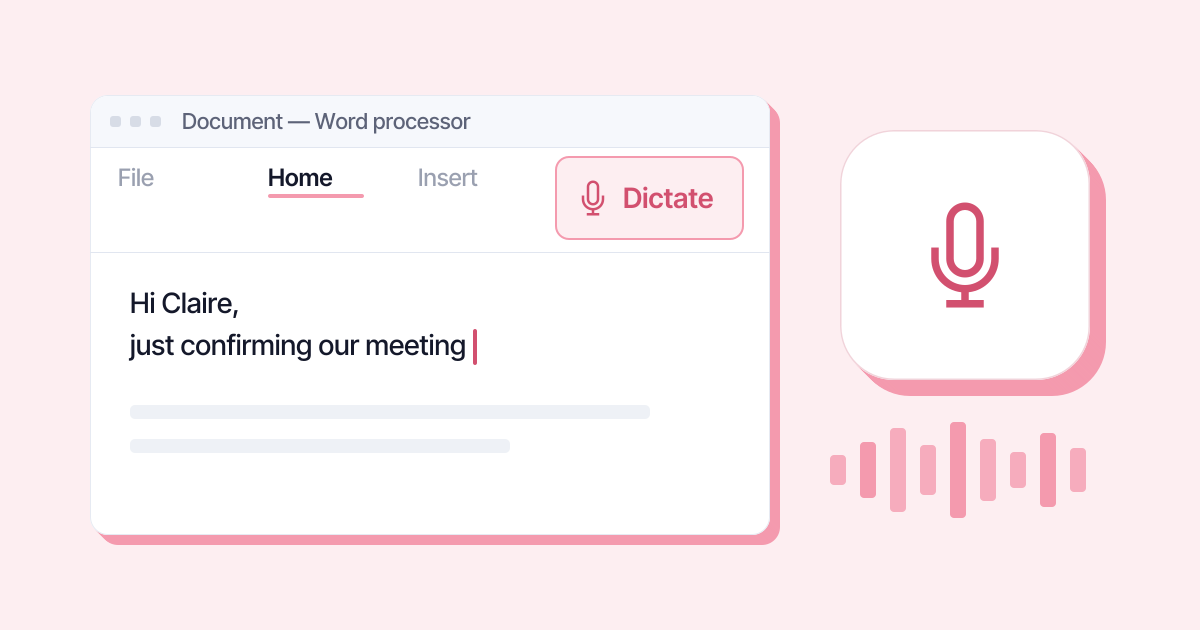
In Word, you start dictation from the Home tab, with the Dictate button: click, speak, and the text appears wherever your cursor is. You need a Microsoft 365 subscription, to be signed in to your account, a microphone and an internet connection. On a Mac, the shortcut is Option + F1.
Turn on dictation in Word, in 3 steps
This works in Word for Microsoft 365, on Windows and Mac, according to Microsoft’s official help page (checked on 22 October 2026).
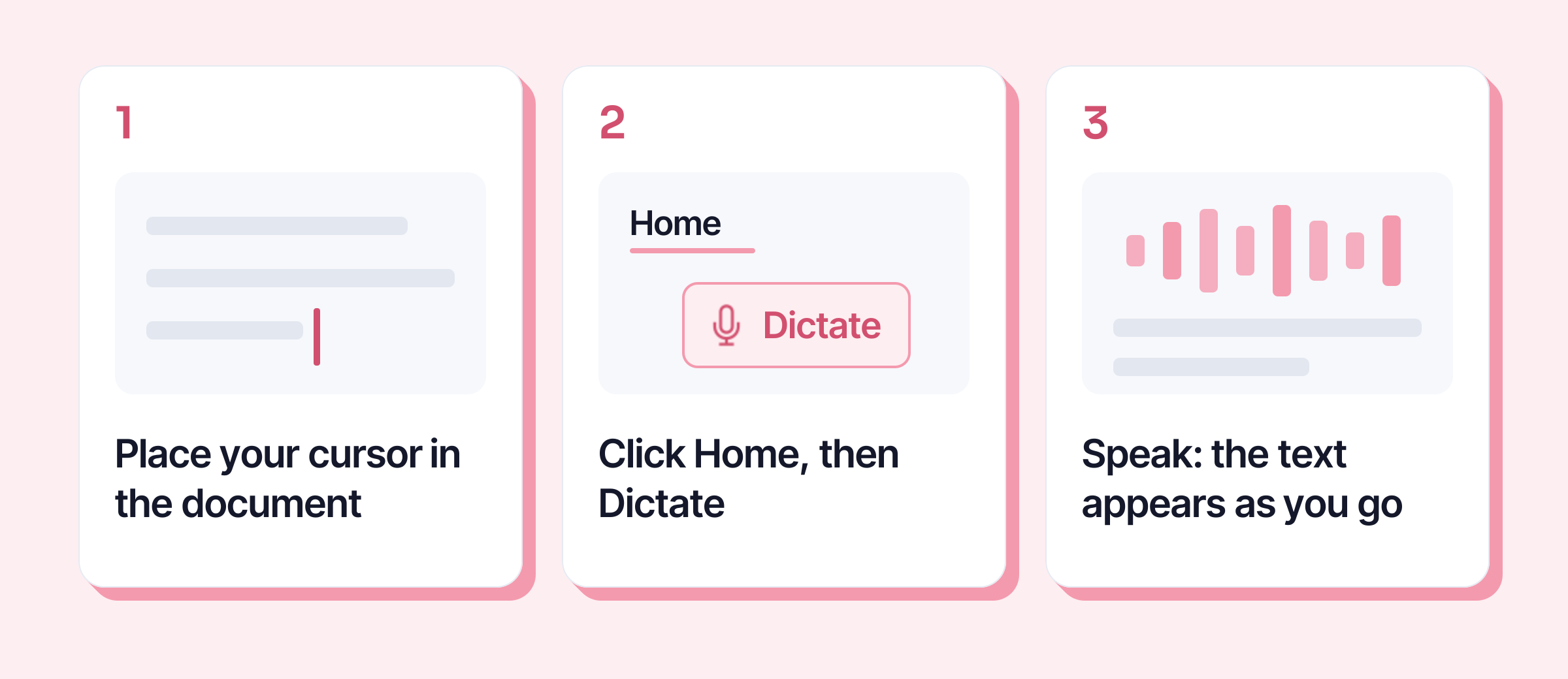
- Open your document and place your cursor where the text should start.
- Click Home, then Dictate. On a Mac, you can also press Option + F1.
- Speak normally, in a clear voice. The text appears as you go. Click Dictate again to stop.
On Windows, Microsoft also documents the shortcut Alt + </kbd> to resume dictation. The <kbd> is the backtick key, left of 1 on UK and US keyboards. On other layouts the key may be elsewhere, so the button remains the safest route.
Dictate punctuation in English
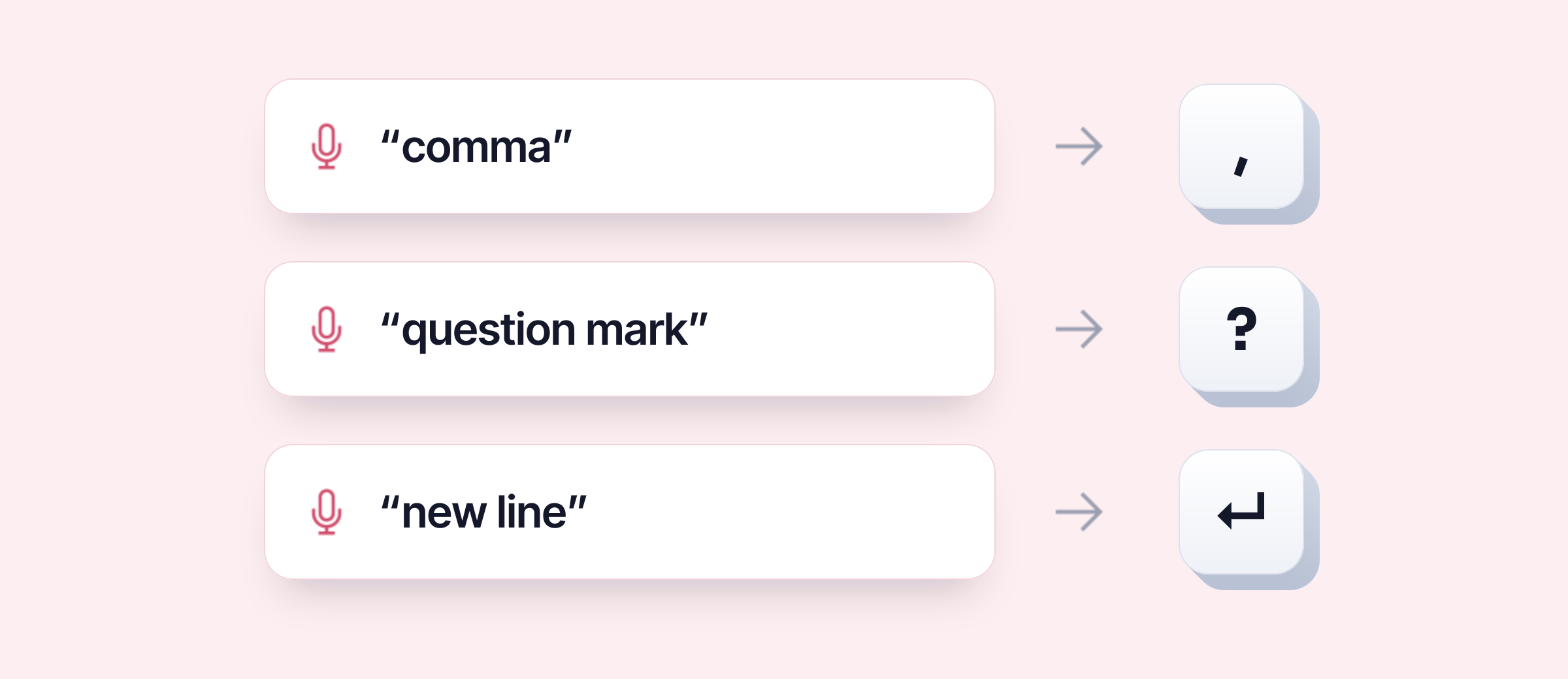
Word doesn’t add the punctuation you don’t say, unless Auto Punctuation is turned on (see below). Here are the commands Microsoft lists for English:
| You say | Word writes |
|---|---|
| period, full stop | . |
| comma | , |
| question mark | ? |
| exclamation mark, exclamation point | ! |
| colon | : |
| semicolon | ; |
| ellipsis, dot dot dot | ... |
| new line | a line break |
| open quotes, close quotes | " " |
| open parentheses, close parentheses | ( ) |
| at sign | @ |
| euro sign | € |
| pound sterling sign | £ |
| percent | % |
UK or US English doesn’t matter for these words: Microsoft lists both “full stop” and “period”, and both “exclamation mark” and “exclamation point”. English (United Kingdom) and English (United States) are separate spoken languages in Word, so pick the one that matches your accent. Microsoft’s English list has no “new paragraph” command: say “new line”, or press Enter.
In English, you can also edit by voice. Microsoft documents commands such as “delete that” or “scratch that”, “undo”, “insert space”, “bold” and “underline”. The full list is on the help page.
The settings that make the difference
In the small dictation toolbar, the gear icon opens four settings:
- Spoken Language: by default, the language of the document. If Word writes nonsense, first check it is set to the English you speak, for example English (United Kingdom).
- Microphone: useful when a headset and a webcam are fighting over the sound.
- Auto Punctuation: Word adds full stops and commas itself, where the language supports it.
- Filter sensitive phrases: replaces phrases that Word considers sensitive with asterisks.
The Dictate button is greyed out or missing: why?
The causes Microsoft gives:
- The button doesn’t appear: you are not signed in with an active Microsoft 365 subscription. Dictation isn’t available in Office 2016 or 2019 for Windows without Microsoft 365, and it needs Windows 10 or later.
- The button is greyed out: the document is open in read-only mode. Save it or enable editing, then try again.
Dictate is also one of what Microsoft calls “connected experiences”: features that go through its servers. You manage them in File > Account > Manage Settings, and with a work or school account, your administrator may have decided which settings you can change. If your computer is managed by your IT team, ask them.
With Office 2021 or 2024 bought outright, Microsoft’s pages are unclear. If the button isn’t there, use one of the two options below.
Without Microsoft 365: two options
Word for the web. Open your document in Word for the web, in your browser, with your Microsoft account: it has its own Home > Dictate button. Microsoft’s pages contradict each other about access without a subscription (its comparison page lists dictation among the features of Word for the web, another keeps it for subscribers): the simplest thing is to try with your account.
Windows voice typing. Place your cursor in Word, or in any text box, and press Windows + H. It also needs an internet connection, and its commands are not Word’s: there you say “new line”, “new paragraph”, “open quotes”, “delete that” or “stop listening” (Microsoft help, checked on 22 October 2026).
What about a recording you already have?
For a voice memo or a recorded meeting, Word offers Transcribe (Home > Dictate > Transcribe). Microsoft caps it at 300 minutes of uploaded audio per month with a Microsoft 365 subscription, and lists it in Word for the web and, on Windows, for business accounts. Accepted files: .wav, .mp4, .m4a and .mp3. The recording is saved in your OneDrive (Microsoft help, checked on 22 October 2026).
The limits to know
- No internet, no dictation. Neither Word’s dictation nor Windows voice typing works offline.
- Your voice goes to Microsoft. Microsoft says its service doesn’t store your audio or the transcribed text, and that your speech is used only to give you the text. Before dictating a confidential document, check that this fits your company’s rules.
- You still need to proofread, especially names and acronyms.
Dictate outside Word
With Keypop, Alt + M opens dictation in any app: Word, Outlook, Teams or your browser. You speak, Keypop adds the punctuation and capital letters, and Enter inserts the text wherever your cursor is. In the free plan, your voice is transcribed by local AI, on your computer; all you need is a free account with your email.