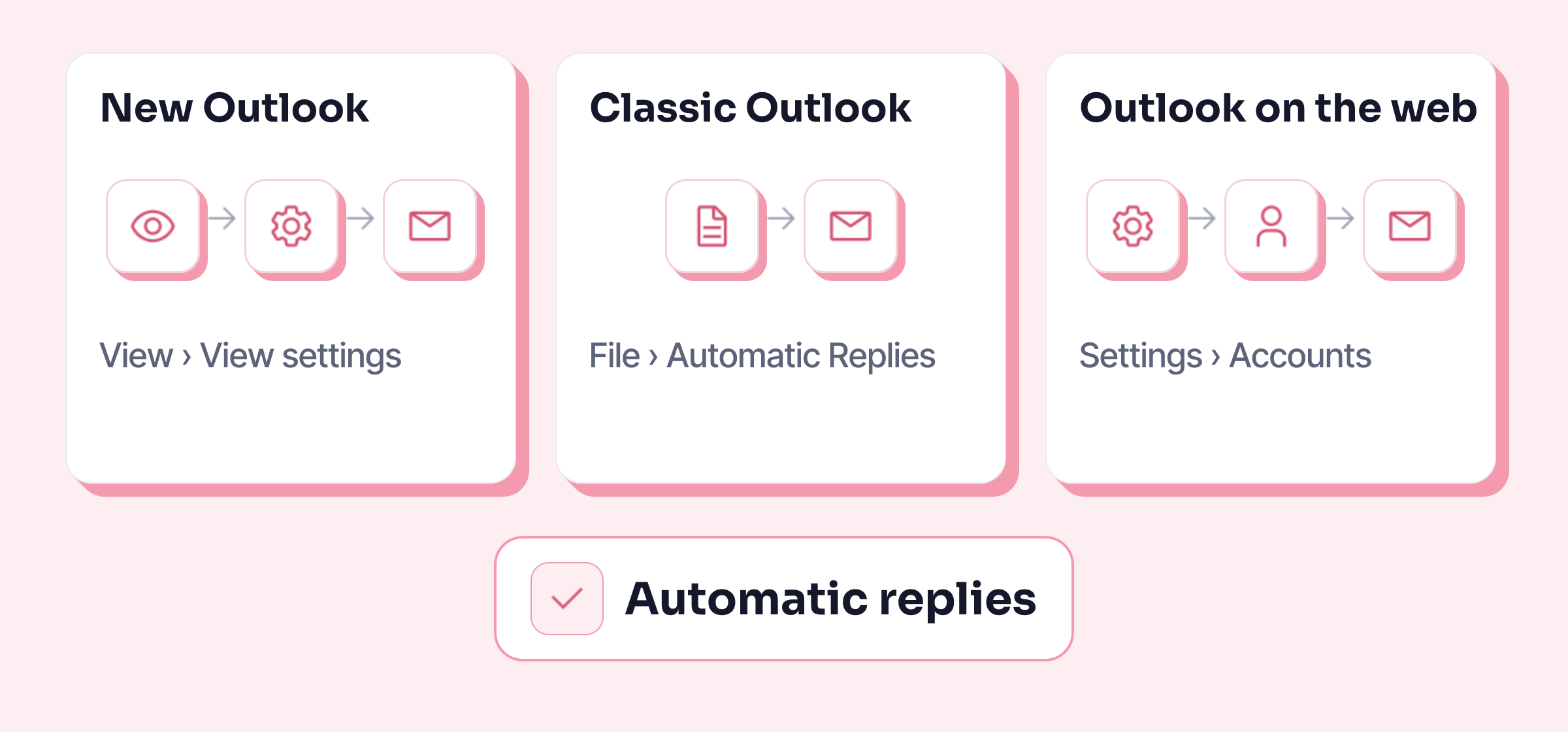
To set up an out of office message in Outlook, open Automatic replies: View > View settings > Accounts in new Outlook for Windows, File in classic Outlook, Settings > Accounts in Outlook on the web. Turn replies on, set the dates of your absence, paste your message and save. Outlook then replies once to each person who emails you during that period.
Turn on automatic replies in Outlook
These steps follow Microsoft’s official help page, checked on 22 October 2026. To find out which Outlook you have: if your ribbon starts with a File tab, you are on classic Outlook.
In new Outlook for Windows
- On the View tab, select View settings.
- Under Accounts, choose Automatic Replies.
- Turn on the Automatic replies toggle.
- Tick Send replies only during a time period, then enter the start and end of your absence.
- Write your message (templates below).
- Select Save.
In classic Outlook for Windows
- On the File tab, select Automatic Replies.
- Tick Send automatic replies. Dates are optional, but without an end date you will have to remember to switch the reply off when you are back.
- Write your message on the Inside My Organization tab for colleagues, and on the Outside My Organization tab for customers and partners.
- Select OK.
To stop before the planned date, select Turn off in the bar that appears under the ribbon.
In Outlook on the web (and Outlook.com)
- Select Settings (the gear icon, top right), then Accounts and Automatic replies.
- Switch on Turn on automatic replies.
- Tick Send replies only during a time period and enter the dates.
- Write your message, then select Save.
Outlook on the web has three extra boxes, useful for long absences: Block my calendar for this period, Automatically decline new invitations for events that occur during this period and Decline and cancel my meetings during this period (Microsoft help, checked on 22 October 2026). In the older (classic) version of Outlook on the web, the menu is called Account, singular.
On a Mac, Microsoft puts the setting under Tools > Automatic Replies (Microsoft help for Mac).
5 out of office templates to copy
Replace what is in square brackets. A good out of office message says three things: when you are back, whether you are reading your emails, and who to contact if it is urgent.
1. Holiday, simple version
Hello,
I am out of the office from [date] to [date] inclusive, with no access to email. I will deal with your message when I am back.
Kind regards,
[First name Last name]
2. Holiday, with a colleague covering
Hello,
I am on leave until [date] inclusive. For anything urgent, please contact [First name Last name], [job title], at [email address]. I will get back to you as soon as I return.
Best regards,
[First name Last name]
3. Short absence (training, business trip, away day)
Hello,
I am [on a training course / travelling for work] until [day and date] and checking my messages only occasionally. I will reply by [date] at the latest.
Best regards,
[First name Last name]
4. Christmas and New Year
Hello,
I am away from [date] to [date] and won’t be reading my messages during that time. If it is urgent, please email [team address]. Wishing you a very happy festive season.
Kind regards,
[First name Last name]
5. Bilingual, for French-speaking contacts
Hello,
I am out of the office until [date] inclusive, with no access to email. For anything urgent, please contact [First name Last name] at [email address].
Bonjour,
Je suis absent(e) jusqu’au [date] inclus. Pour toute urgence, contactez [Prénom Nom] à [adresse email].
Best regards / Cordialement,
[First name Last name]
Not sure how to sign off in French? See Cordialement or Bien cordialement. And for the rest of your emails, from subject line to signature: how to write a professional email.
The settings to know
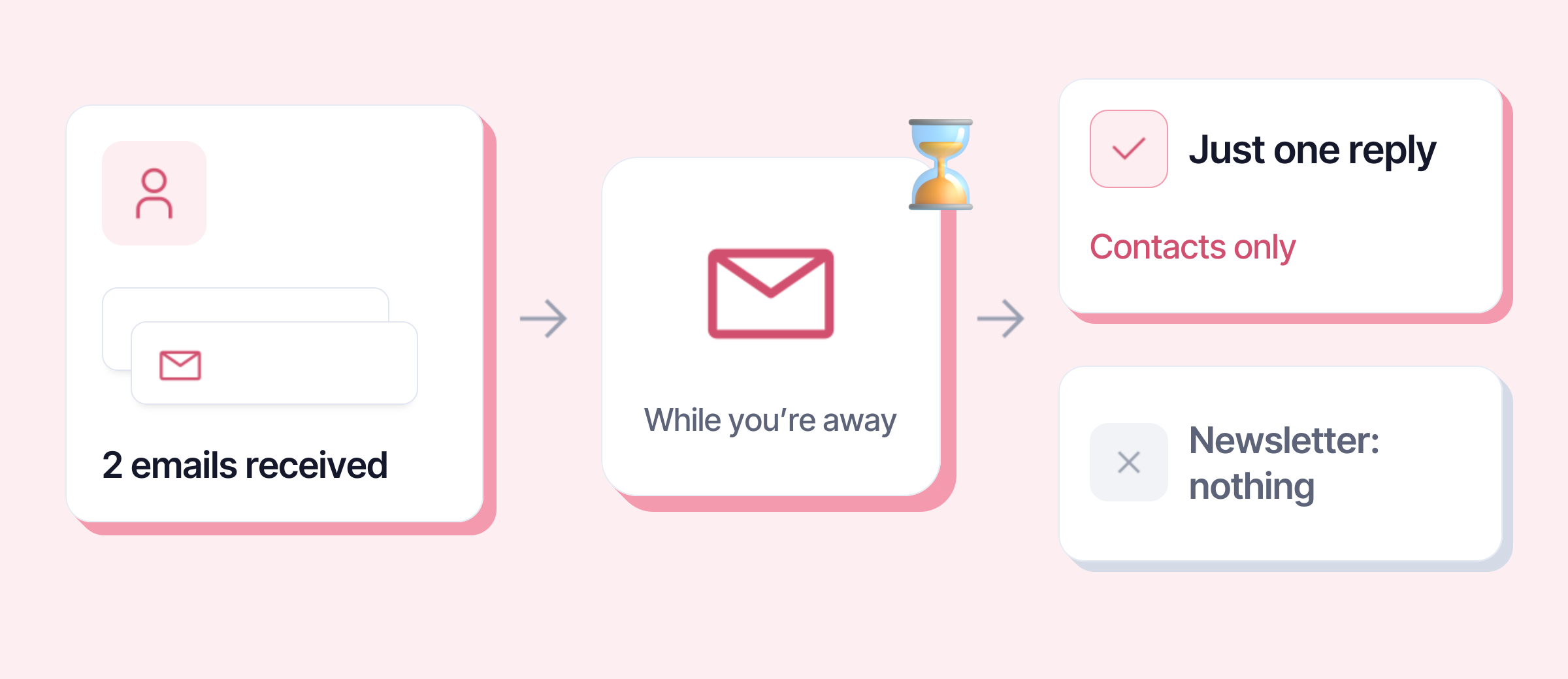
- One reply per person. Microsoft says so: the reply goes once to each person who emails you while you are away. A customer who sends you three emails doesn’t get your message three times.
- “Contacts only” for outside senders. In new Outlook, classic Outlook and Outlook on the web, you can limit outside replies to your contacts. Microsoft recommends it: otherwise your message also goes to newsletters and adverts.
- Two messages, two audiences. In classic Outlook, nothing forces you to write the same thing to colleagues and customers. Internally, you can name the person covering for you and give their role; externally, a team address is often enough.
- Always set an end date. Without one, the reply stays on until you switch it off yourself.
Why the Automatic Replies button doesn’t appear
Outlook’s automatic replies run on the mail server: they work with a Microsoft 365, Exchange or Outlook.com account. According to Microsoft, they are not supported for a Gmail, Yahoo, POP or IMAP account added to Outlook.
In that case, Microsoft points you to a rule that replies to incoming messages. The catch is a big one: Outlook has to stay running on your computer for your whole absence. For a Gmail address, the simplest option is to turn on the out of office reply in Gmail itself.
If your company manages your email and the option is greyed out, it is a setting controlled by your IT team: ask them.
Before you leave, check
- Send yourself an email from another address to see what your contacts will receive.
- Check the end date and time: the reply should run until the moment you open your inbox again, not stop the day before.
- Let the person covering for you know you have given out their name.